
Sharing collections
Sharing a collection allows you to give people outside your company access to a set of point clouds, and optionally grant them access to download the source files and export selected regions of interest.
Note: When you share a collection, any child collections are not automatically shared (they won't be visible to the recipient). Sharing only applies to the items in the specific collection that you specify.
How to share a collection
If you have been granted permission to share a collection (or are a company administrator), you will see an option to "Share this collection" next to the collection name. This option may instead be in the three-dot (⋯) action menu next to the collection name. Selecting this will bring up the share collection window.

Collection sharing methods
The sharing window that pops up offers three different options for sharing the collection:
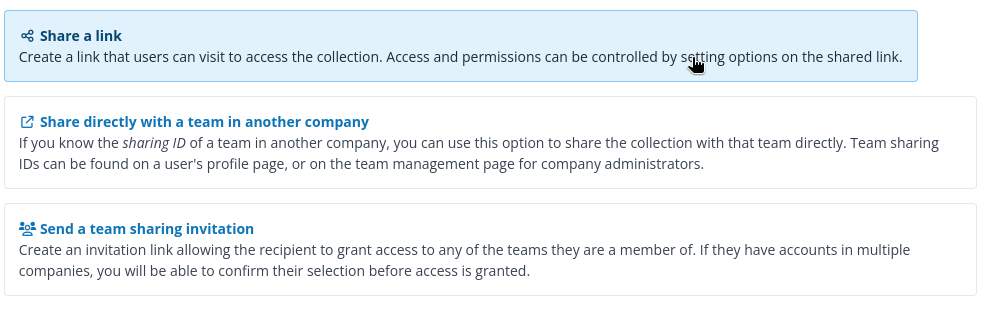
Share a link is the simplest option - it creates a link that you can share with one or more people, allowing them to view projects in the collection. You can set options that control access and permissions that apply when using the link.
Share directly with a team in another company - if you want to share with a specific team in another company, you can find out the sharing ID for that team and share the collection directly. See Sharing a collection with a team from another company.
Send a team sharing invitation - if you just want to share the collection with someone outside your company, you can send an invitation that will allow them to share the collection with their own teams. You will be able to control access using collection permissions. See Sharing a collection with another user's teams.
Share link options
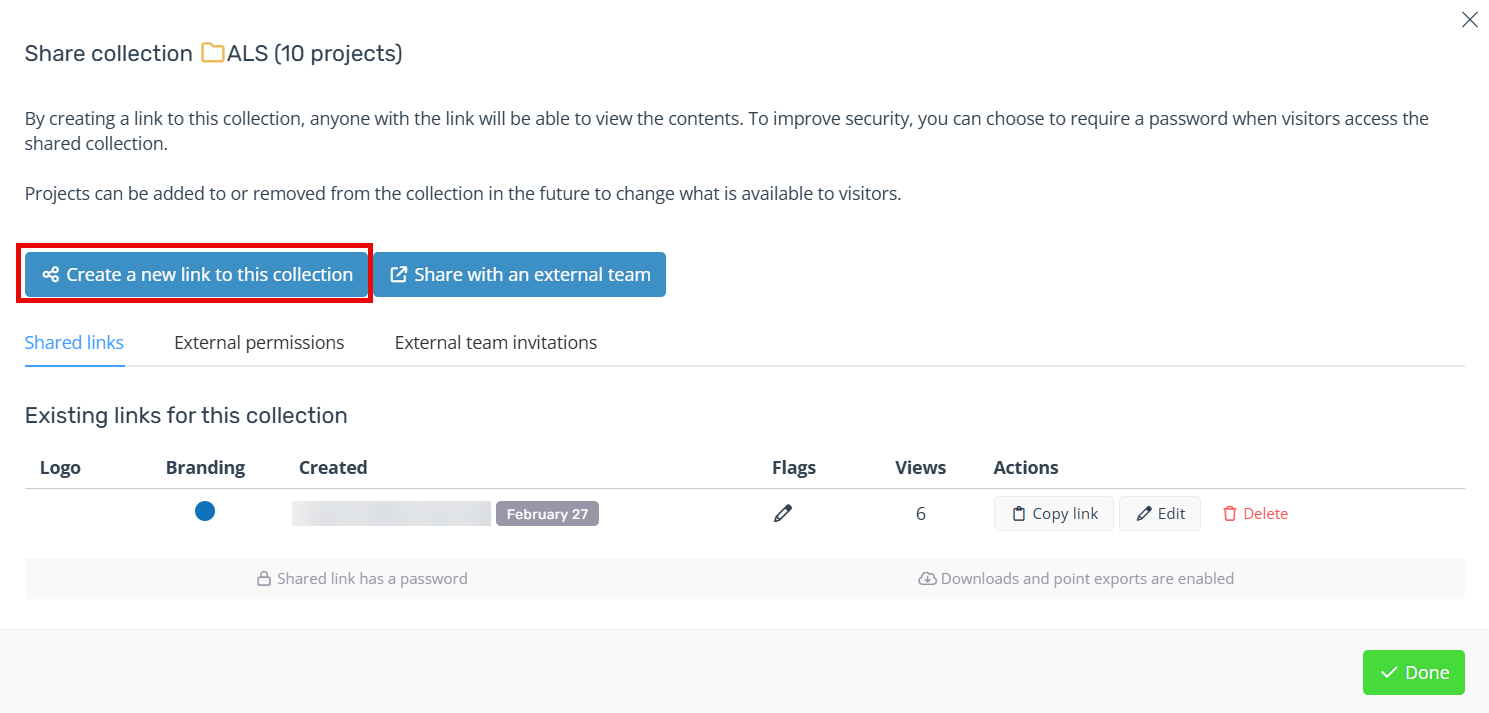
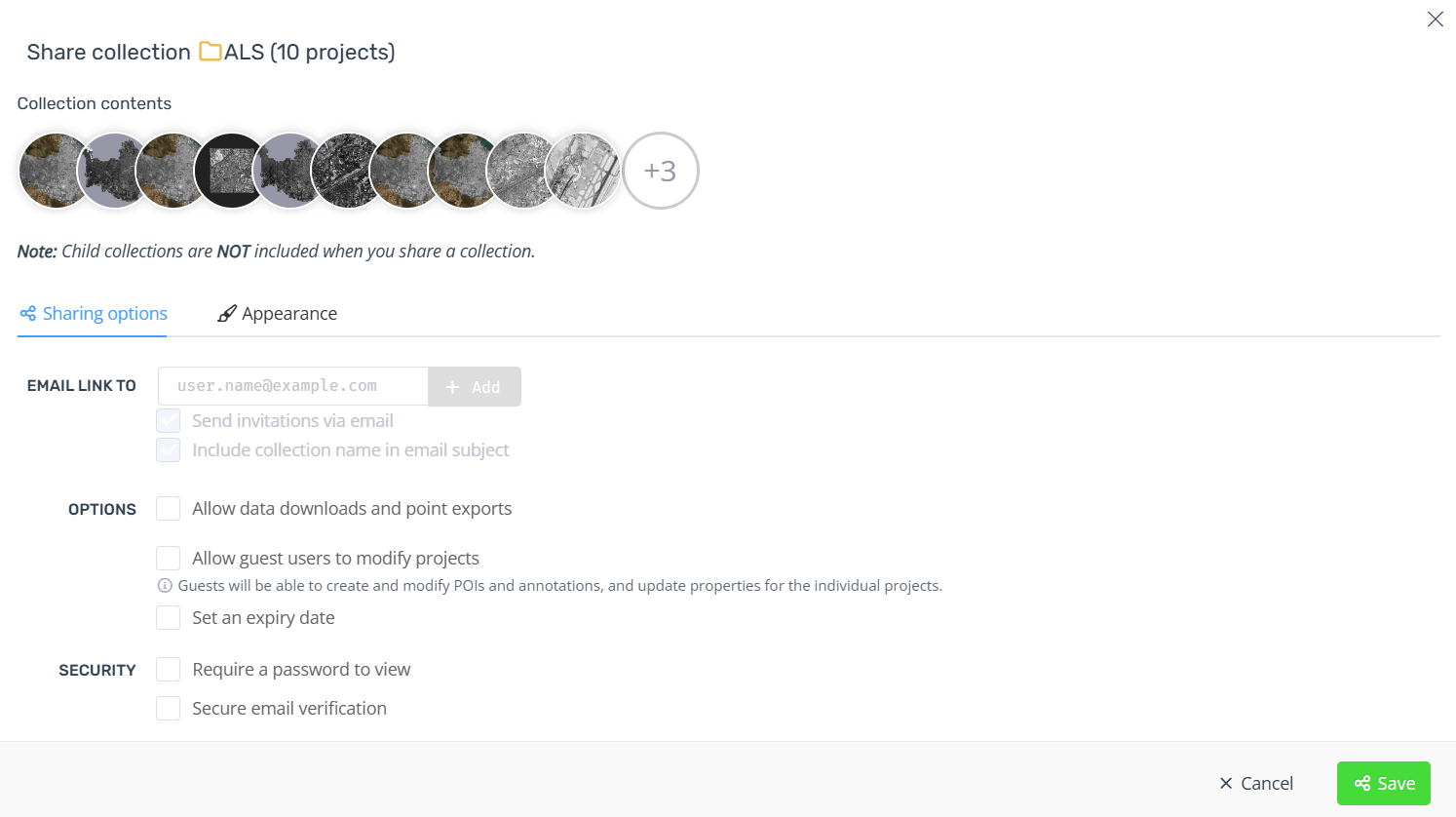
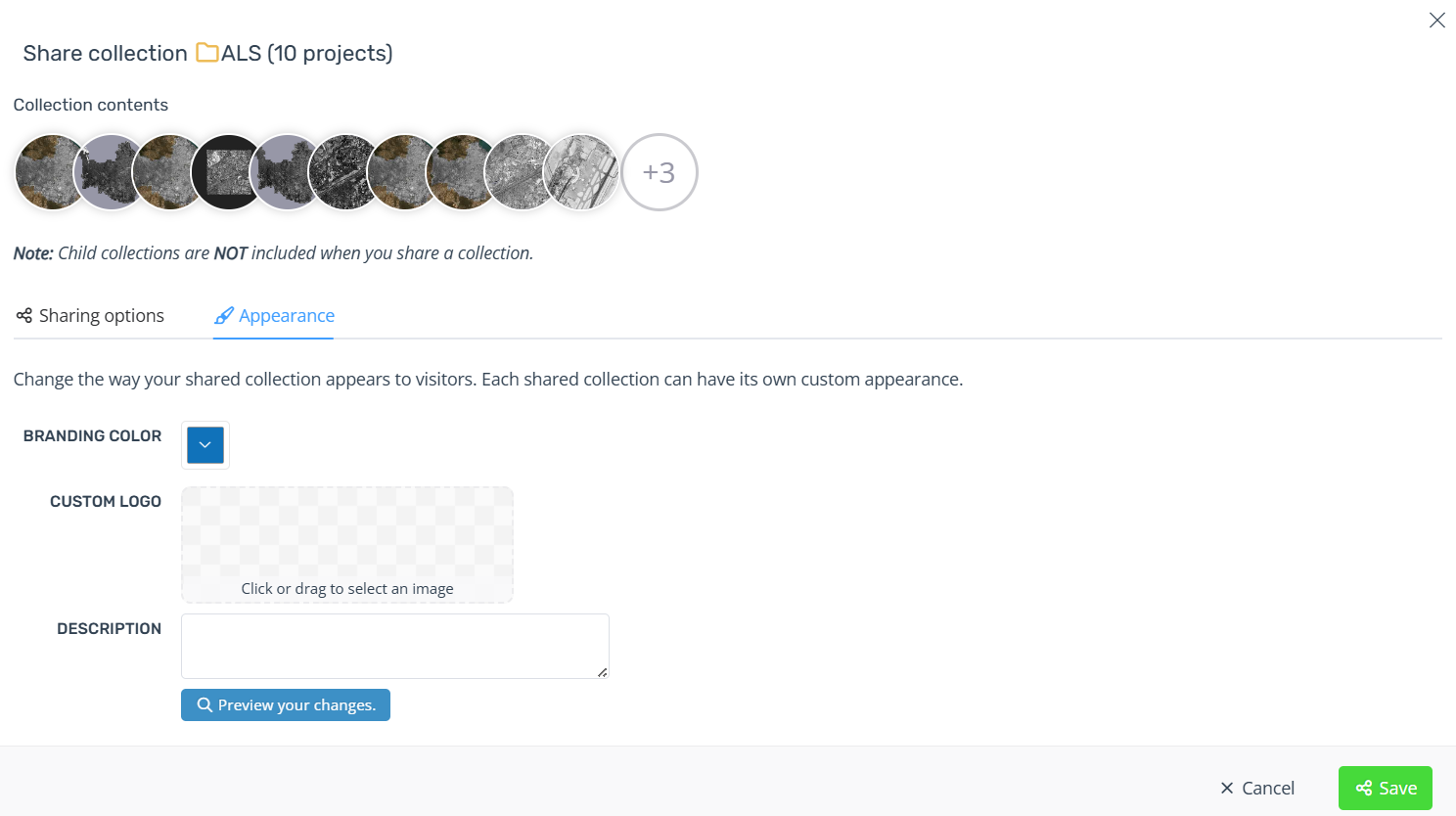
When creating a new shared link, you can configure options that will affect how it is displayed to visitors and what actions they can perform. The first options screen covers security and permissions, while the second one allows you to customize the appearance of the sharing page.
Using shared links
Once you've shared the collection, you can send the link to people directly to give them access. To change which point clouds your visitors see, add or remove point clouds from the collection using the collection management tools.